
Keep the day’s jobs in one schedule.
Add appointments yourself or let customers request an available time. Check the request, then confirm or decline it.
Try it free for 14 daysNo card needed. Works on your phone and computer.
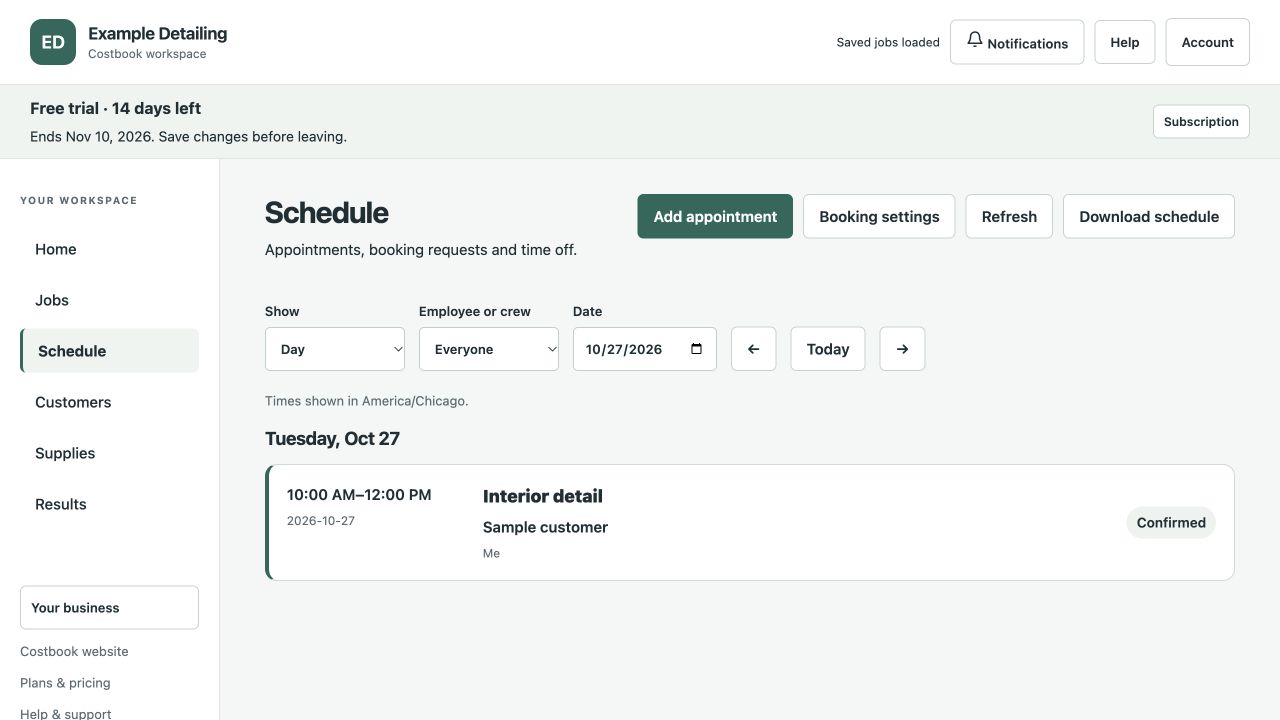
Book enough time for the work
Save an expected duration for each service. When you add an appointment, Costbook uses that duration to set the end time. You can change it for that job and add a buffer between appointments.
- Set working hours. Choose your business hours and staff availability.
- Add people and spaces. Include employees or crews, shared bays and mobile units.
- Add the appointment. Choose a saved job or enter the customer and service.
- Review conflicts. Costbook checks the people, space and simultaneous-job limit. You can override a warning with a reason.
Let customers request a time
Turn on your booking page and share its link. Customers choose a service and available time, then enter their contact details. New requests appear in your schedule and notification inbox.
A request holds the time for up to 24 hours while you review it. You confirm or decline it. Price approval is handled separately through the estimate.
More than one job at a time?
Set how many jobs the business can handle at once. Costbook also checks whether the required people and bay or mobile unit are available.
Employees and crews are schedule records. Separate employee sign-ins are still being built. Automatic customer reminder messages are not included yet.
Common questions
Can I change an appointment’s length?
Yes. Change its start, end or duration. Check any conflict warnings before saving.
Can I block time off?
Yes. Add time off for the whole business, selected people or a shared resource.
Try it with your own jobs
Use Costbook free for 14 days. Add your business details and create your first estimate. No card needed.
Start your free trial